
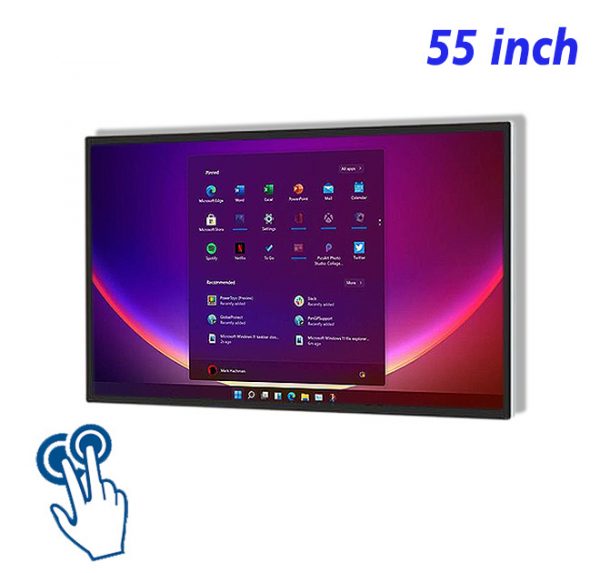
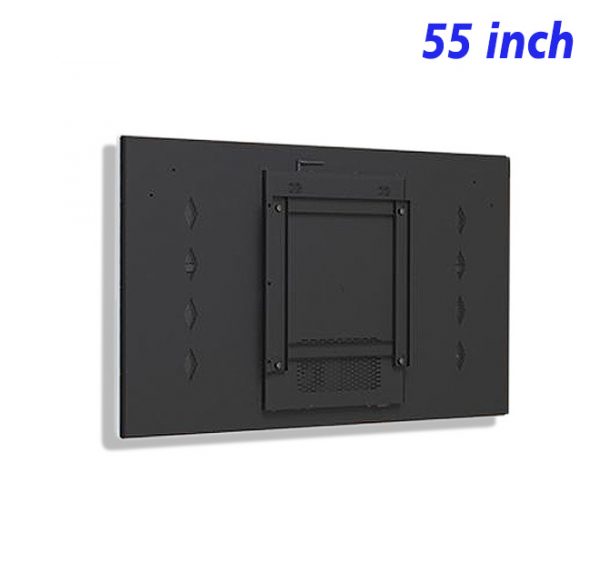
55-inch Wall-Mounted Advertising Machine – A New Highlight in Sports Venues
The application of 55-inch wall-mounted advertising machines in sports venues enhances brand image and audience experience, becoming a bridge connecting sports venues and spectators.
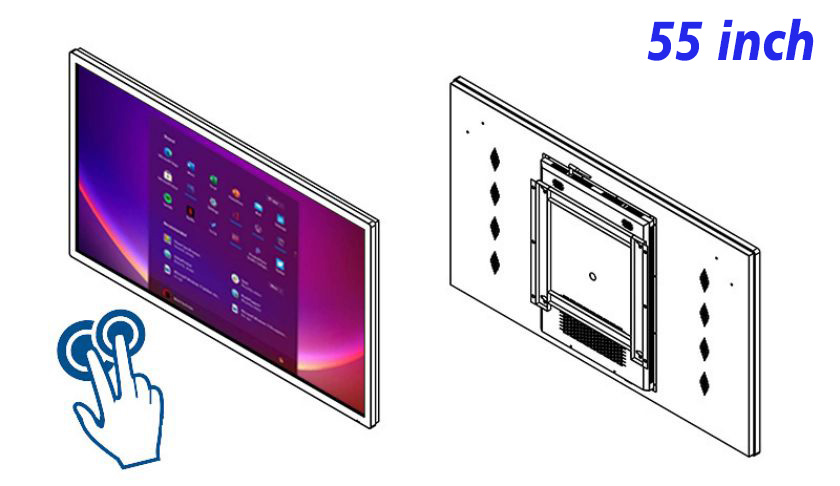
As the number of sports events increases and technology develops, sports venues, as the main locations for hosting various sports activities, place great importance on their display methods and service experiences. In order to better attract audiences and convey brand value, more and more sports venues are adopting advanced display technology. Among them, the 55-inch wall-mounted advertising machine, with its unique display effects and information dissemination capabilities, is gradually becoming a key element in enhancing the image and service level of sports venues.
55-Inch HD Wall-Mounted Advertising Machine – Enhancing Venue Image
Deploying 55-inch HD wall-mounted advertising machines within sports venues not only allows for the display of event information and venue guides but, more importantly, enables the playback of exciting highlights, behind-the-scenes footage, and athlete interviews, thereby shaping the professional image of the sports venue. This large-sized high-definition display device can attract the audience’s attention, allowing them to gain a comprehensive and profound understanding of the sports venue in a short time.
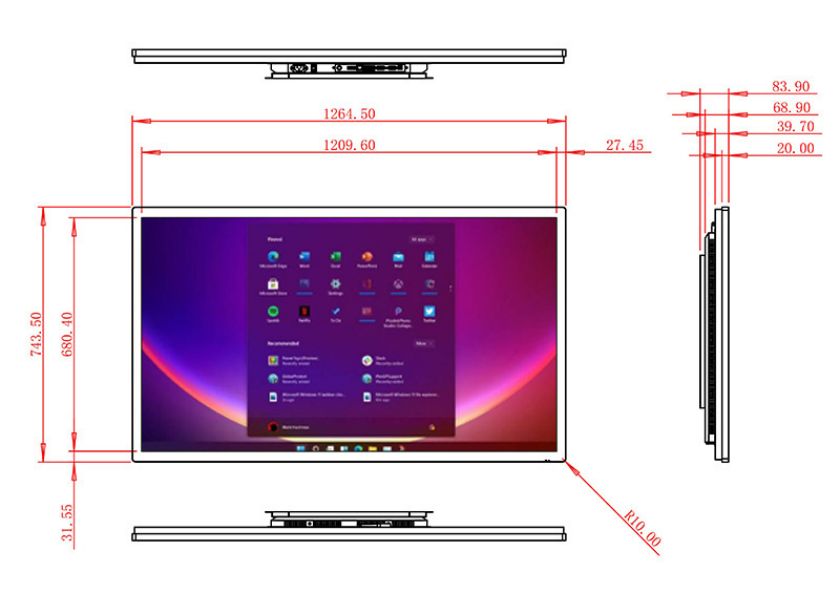
LCD Screen Outdoor Display Wall-Mounted Machine – Providing an Immersive Experience
The LCD screen outdoor display wall-mounted machine offers an immersive experience with its high-definition display effect and wide field of view. Whether broadcasting live sports events, exciting highlights, or showcasing the history, culture, and future plans of the sports venue, all can be vividly presented before the audience. This immersive experience not only stimulates the audience’s interest but also deepens their understanding of the sports venue.
Indoor HD Wall-Mounted Advertising Player — Optimizing Audience Service
For sports venues, enhancing the audience service experience is crucial. Indoor HD wall-mounted advertising players can be used to display schedules, venue guides, and other content, helping the audience understand event information and reducing the hassle of finding seats or facilities. In addition, these devices can also showcase audience feedback, sponsor information, etc., enhancing the audience’s sense of participation and satisfaction.
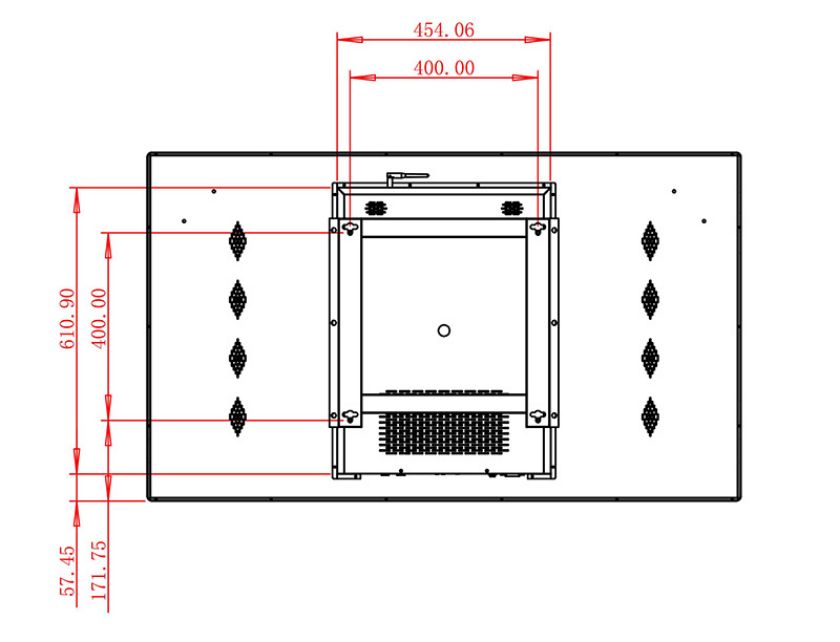
55-inch Wall-Mounted Advertising Machine — Enhancing Sports Event Promotion
To better promote sports events and services, the 55-inch wall-mounted advertising machine can play detailed event introduction videos, including highlights, athlete profiles, and more. This intuitive and vivid display method allows the audience to gain a comprehensive understanding of event information, thereby stimulating their desire to watch. At the same time, these devices can also be used to display ticket information, promotional offers for related merchandise, and other information, further promoting the events.
The 55-inch wall-mounted advertising machine provides an efficient information dissemination tool for sports venues, not only enhancing the venue’s image and service quality but also effectively promoting events and services. With the advancement of technology and changes in market demand, the 55-inch wall-mounted advertising machine will play an increasingly important role in future sports venues. Sports venues should fully utilize the advantages of this medium, continuously innovate display methods and service models, and provide audiences with a more convenient and efficient viewing experience.
Reviews
There are no reviews yet.